
The Problem
This text shows the steps to follow to connect an NGINX reverse proxy installed on a server A, and provide access through it to services hosted in a different machine, B. If the machines are in different locations or networks, we can solve the connectivity in several ways, one of them being a VPN.
In my personal case, this allows me to install NGINX on a VPS and use it to expose services hosted at my home server, “barcas”. To connect the two machines and allow NGINX to reach the upstream services, I have used Tailscale.
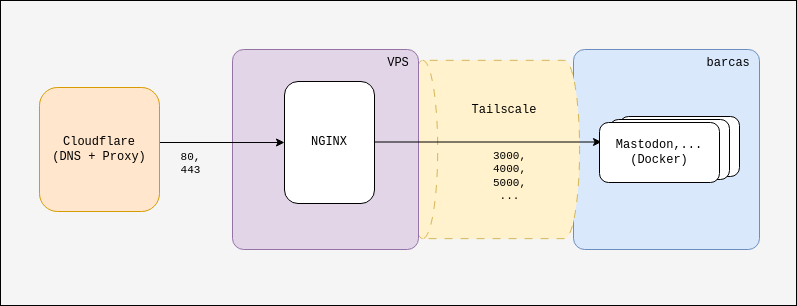
The goal
This post continues the series that started with “Changes to My Network, Sponsored by XMPP”. If you’re wondering why would we do that, or what value brings this configuration, please check read that one first.
Solution
You’ll need the following:
- A VPS server rented from your provider of choice, to which you can access through SSH.
- A server at your home, with at least one service accepting HTTP connections, let’s say, through the port 5000. (
0.0.0.0:5000). I will call this host potato in the remainder of this post, just for the sake of brevity and readability. - A free Tailscale account. In general, we could do this with any VPN provider and even one self-hosted by us, preferably providing service based on WireGuard, as it is more performant than OpenVPN.
- Optionally, or probably for this post to be meaningful, we should have a domain with their DNS records pointing to the VPS of point #1.
For the rest of the article I will assume that the hosts (the VPS and potato) have installed an Ubuntu LTS Server, such as 24.04.
If there were no issues you should have all this up and running in about 20 minutes.
Home Server
We’ll log into (the) potato, where our service is waiting for requests behind port 5000.
Install Tailscale and authenticate potato against our account. This will give potato an IP address within the VPN:
# Tailscale install commands are not reproduced, as they can
# change at any point in time.

sudo tailscale up
# Follow the instructions

# Enable Tailscale as a system service, permanently running
sudo systemctl enable tailscaled --now

# Obtain and write down the IP address at the tailnet.
tailscale ip -4
100.85.67.22
At Tailscale’s dashboard we can see the host’s local name, and also the IP address returned by the last command.
We can also configure the host so that we don’t have to re-authenticate it into the VPN, disabling the expiry of the key used to authenticate the machine to Tailscale.
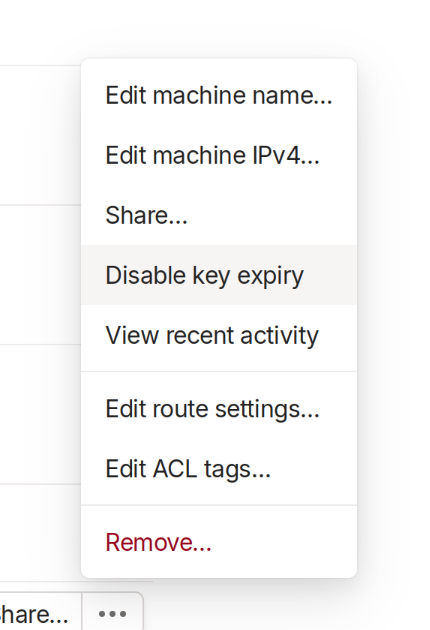
Relevant option to disable the key expiry
Optionally, we can also enable “MagicDNS” to be able to refer to the hosts by a domain name instead of by an IP address, with no local configuration to do in the machines.
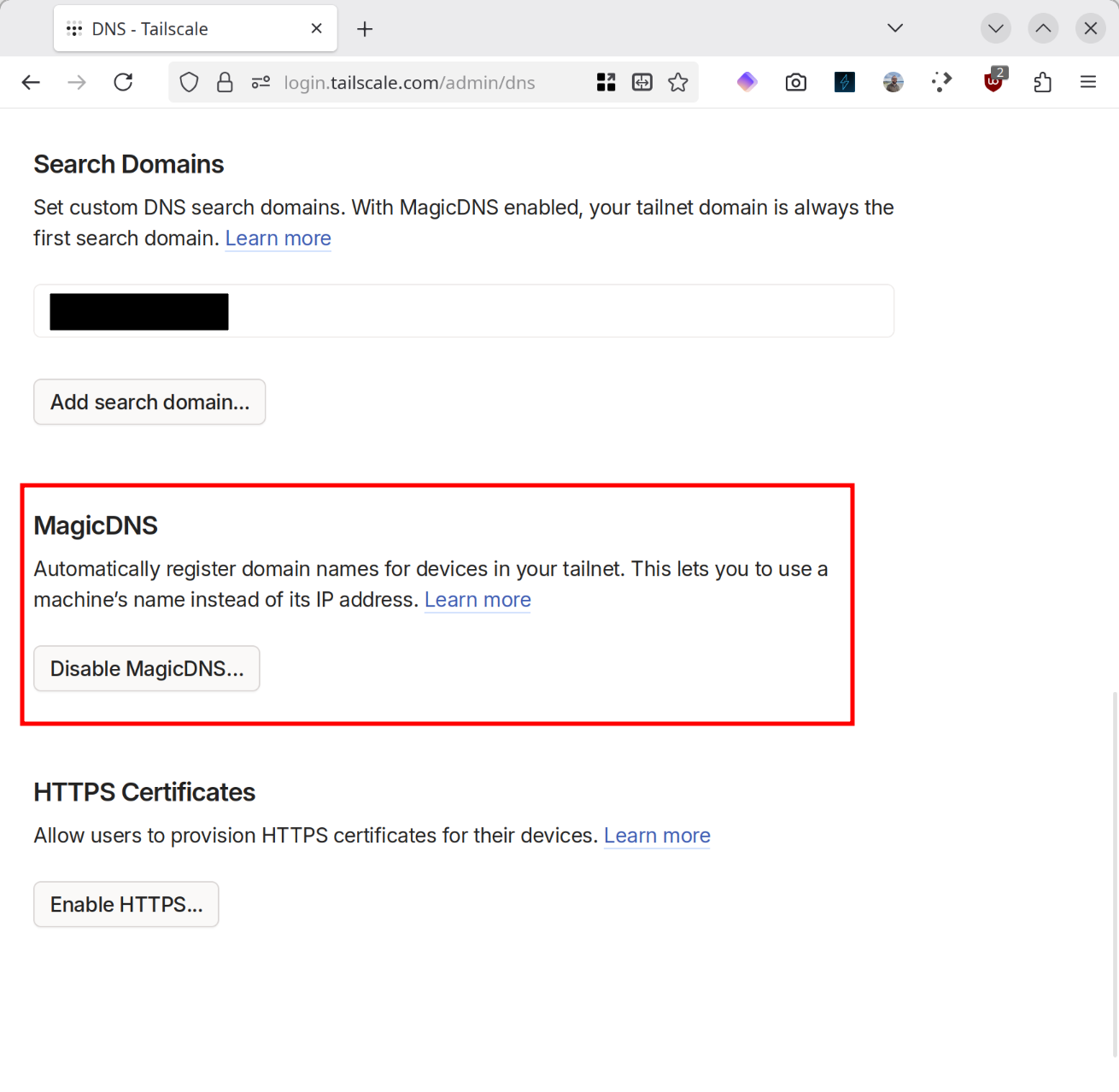
“MagicDNS” options in Tailscale’s control panel. In the picture it is already enabled.
Once the machine is already in Tailscale, we must open port 5000 in the potato’s firewall, if we hadn’t done so yet, so that it can receive requests from the VPS through that port.
sudo iptables -A INPUT -p tcp -m tcp --dport 5000 -j ACCEPT
Regarding this:
- If your machine doesn’t have
iptables-persistentinstalled, this is a good moment to install it so that we can save the firewall rules to be applied automatically at boot time.
sudo apt install iptables-persistent
sudo iptables-save > /etc/iptables/rules.v4
- I personally open the ports in all the network interfaces, not only in Tailscale’s.
- As I won’t have that port open in the router, I am not doing anything that would leave me overly exposed.
- This way I don’t need to always use Tailscale to perform tests on potato from home.
- Each case is different: you should decide what to do with your firewall depending on how critical the service you’re configuring is, and how sensitive the data it manages is.
VPS
Connect to the VPS through SSH and install a reverse proxy. Even if we’re not going to have more than one web (80, 443) service listening, configuring, understanding and managing an HTTP reverse proxy is way easier than handle IP redirects and their relevant firewall DNAT rules.
I use NGINX.
sudo apt update && sudo apt install nginx
Install Tailscale and follow all the steps we did with potato. Write down the VPS’ IP address in “the tailnet”, for example 100.85.77.36.
Get a Let’s Encrypt certificate your your domain, with CertBot. For this:
- We must have already configured the DNS records of our domain,
example.com, to point to the public IP of the VPS (not its IP at Tailscale) we’re working on. - We may have to stop NGINX (
sudo systemctl stop nginx) before, depending on our domain provider and their CertBot plugins available, if any.
sudo certbot certonly --standalone -d example.com
...
...
Successfully received certificate.
Certificate saved at: /etc/letsencrypt/live/example.com/fullchain.pem;
Key is saved at:      /etc/letsencrypt/live/example.com/privkey.pem;
...
...
Configure now the service in the reverse proxy, writing the IP of potato in Tailscale in the proxy_pass directive. For this, we’ll create a configuration file under /etc/nginx/sites-available/, for example example.com.conf for an https://example.com website.
upstream exampleweb {
        # Replace [IP or host name] for your 'potato' value
        # **in Tailscale**.
        # 100.85.67.22 in the post's example.
        server [IP or host name]:5000;
        keepalive 64;
}

server {
        server_name example.com;
        listen 80;

        location / {
                return 301 https://$host$request_uri;
        }
}

server {
        server_name example.com;
        listen 443 ssl http2;

        # Other SSL stuff goes here
        ssl_protocols TLSv1.2 TLSv1.3;
        ssl_ciphers HIGH:!MEDIUM:!LOW:!aNULL:!NULL:!SHA;
        ssl_prefer_server_ciphers on;
        ssl_session_cache shared:SSL:10m;
        ssl_session_tickets off;

        ssl_certificate     /etc/letsencrypt/live/example.com/fullchain.pem;
        ssl_certificate_key /etc/letsencrypt/live/example.com/privkey.pem;

        location / {
                # The final `/` is important.
                proxy_pass http://exampleweb/;
                add_header X-Frame-Options SAMEORIGIN;
                add_header X-XSS-Protection "1; mode=block";
                proxy_redirect off;
                proxy_buffering off;
                proxy_set_header Host $host;
                proxy_set_header X-Real-IP $remote_addr;
                proxy_set_header X-Forwarded-For $proxy_add_x_forwarded_for;
                proxy_set_header X-Forwarded-Proto $scheme;
                proxy_set_header X-Forwarded-Port $server_port;
                proxy_read_timeout 90;
        }
}
We’ll create now a symbolic link to this file under /etc/nginx/sites-enabled, test NGINX’ configuration and, if all goes well, reload it.
cd /etc/nginx/sites-enabled/
sudo ln -s ../sites-available/example.com.conf
sudo nginx -t
nginx: the configuration file /etc/nginx/nginx.conf syntax is ok
nginx: configuration file /etc/nginx/nginx.conf test is successful
# If we had to stop NGINX to get the certificate, we start it up;
# otherwise:
sudo systemctl reload nginx
At this point we should be able to interact with our service at potato through https://example.com.
Troubleshooting
- This thing doesn’t render anything, the service seems to be not replying. If there is activity in NGINX’ logs in the VPS (
sudo tail -f /var/log/nginx/access.log), and the request is abandoned after a time out, there are a few possible causes for this in my limited experience. At potato:- The service upstream we want to access from NGINX is not working, and we have to start it up.
- the service upstream is exposed through port 5000 of a specific network interface, instead of
0.0.0.0(which meansall network interfacesof potato), and other than Tailscale’s; for example,127.0.0.1, - or we did something wrong in the firewall and the request is being rejected in that way.
- NGINX’ settings are OK (
sudo nginx -tsays 👍), but NGINX doesn’t start or dies when you reload the configuration. The most frequent cause is that NGINX can’t reach or find the upstream at potato, the one pointed by theproxy_passdirective.- We may have a typo in the
proxy_pass, - NGINX may have tried to reach potato before Tailscale’s tunnel was up, for example if this happens upon a VPS reboot,
- maybe Tailscale is down in any of the two hosts.
- This cause can be checked by looking for a
host not found in upstreamin the output ofsudo systemctl status nginx:
- We may have a typo in the
nginx.service - A high performance web server and a reverse proxy server
     Loaded: loaded (/usr/lib/systemd/system/nginx.service; enabled; preset: enabled)
    Drop-In: /etc/systemd/system/nginx.service.d
             └─override.conf
     Active: active (running) since Fri 2025-08-29 11:05:51 UTC; 3 days ago
       Docs: man:nginx(8)
    Process: 1154 ExecStartPre=/usr/sbin/nginx -t -q -g daemon on; master_process on; (code=exited, status=0/SUCCESS)
    Process: 1156 ExecStart=/usr/sbin/nginx -g daemon on; master_process on; (code=exited, status=0/SUCCESS)
    Process: 58676 ExecReload=/usr/sbin/nginx -g daemon on; master_process on; -s reload (code=exited, status=1/FAILURE)
   Main PID: 1157 (nginx)
      Tasks: 3 (limit: 1110)
     Memory: 46.9M (peak: 200.2M)
        CPU: 29min 57.349s
     CGroup: /system.slice/nginx.service
             ├─1157 "nginx: master process /usr/sbin/nginx -g daemon on; master_process on;"
             ├─1158 "nginx: worker process"
             └─1159 "nginx: cache manager process"

...
Sep 02 05:32:49 vps-hostingprovider nginx[58676]: 2025/09/02 05:32:49 [emerg] 58676#58676: host not found in upstream "100.85.77.22" in /etc/nginx/sites-enabled/example.com.conf>
Sep 02 05:32:49 vps-hostingprovider systemd[1]: nginx.service: Control process exited, code=exited, status=1/FAILURE
Sep 02 05:32:49 vps-hostingprovider systemd[1]: Reload failed for nginx.service - A high performance web server and a reverse proxy server.
lines 1-28/28 (END)
- We get an HTTP Status Code 502. This means that, while NGINX is doing well, the upstream service we’re trying to reach at potato’s port 500 is throwing errors.
- If you go and do a test from the potato and goes well, almost for sure this is a matter of trusted proxies. To describe the problem in depth and correctly is outside of the scope of this post, but in summary the point is that you must tell your application that the VPS that is hosting the reverse proxy, a machine other than potato, is trustworthy. This is done by configuring VPS’ IP address in Tailscale as a trusted proxy. Check your specific web application logs to confirm this hypothesis.
- This is not a problem, but a rather interesting security feature.
- For example, this happened to me with both my Mastodon instance and Nextcloud. In both cases, each application’s documentation had the solution for it: Mastodon – trusted proxies, Nextcloud – trusted proxies
- Depending on how the service we’re trying to fix is written, you may have to set a trusted proxy using an IP or you may be able to set a domain name, or either. Don’t desist if it doesn’t work at first try.